On this page
- The Short Version
- How It Works
- Part 1: Setting Up Foundry
- 1. Create the Display User
- 2. Give VTT Ownership of Every Player Character
- 3. Install the Modules
- 4. Hide the UI on the Table Screen
- 5. Pick a Fog Mode
- 6. Check a Few World Settings
- Part 2: Getting It on the TV
- Wall or Table?
- Connecting the TV
- Open the Table Screen
- Table Screen Performance Tuning
- If You’re Using Minis
- Part 3: Running the Game
- Vision at the Table
- Moving the Camera
- Pointing, Drawing, and Signaling
- Dice
- Pre-Game Checklist
At this point, I think “How do I run Foundry in Person” has to be one[1] of[2] the[3] most[4] asked[5] foundry[6] questions[7] in[8] history[9] (wait not that last one).
I’ve been using Foundry in person for years, because as convenient as online TRPGs are, it’s nothing compared to in-person cross-talk filled, Dr Pepper fueled gaming bliss.
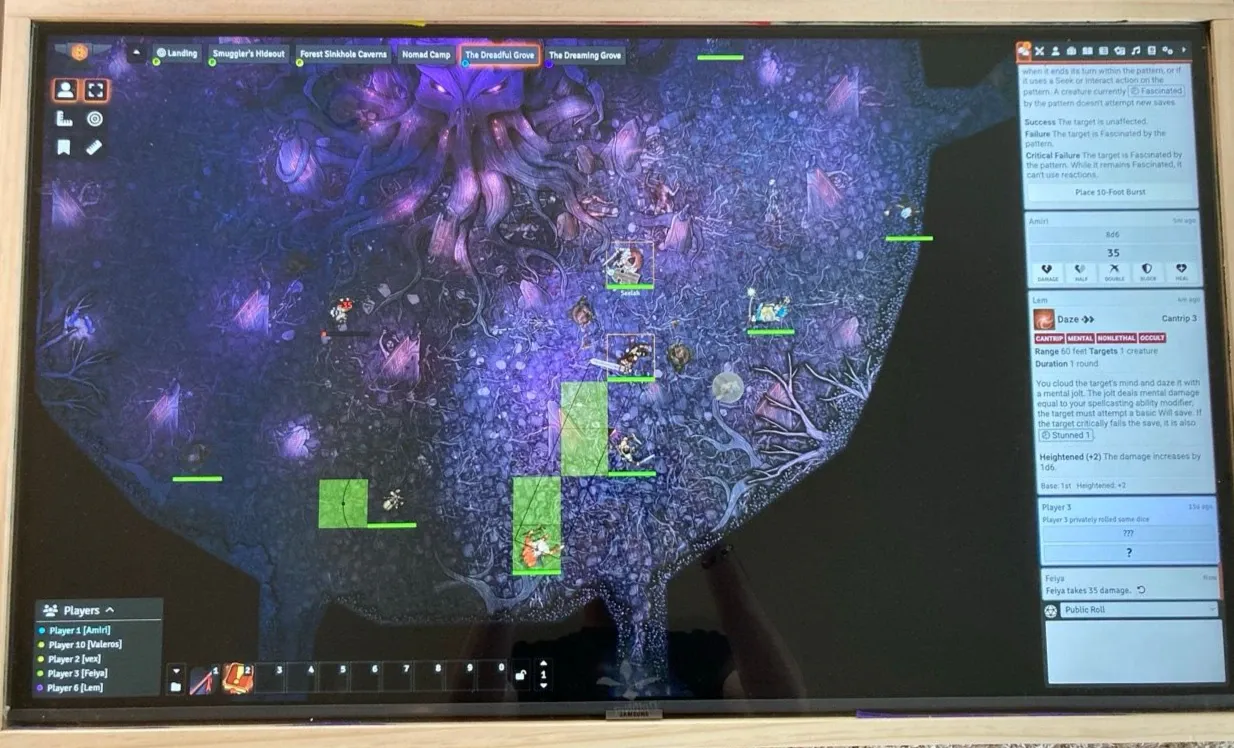
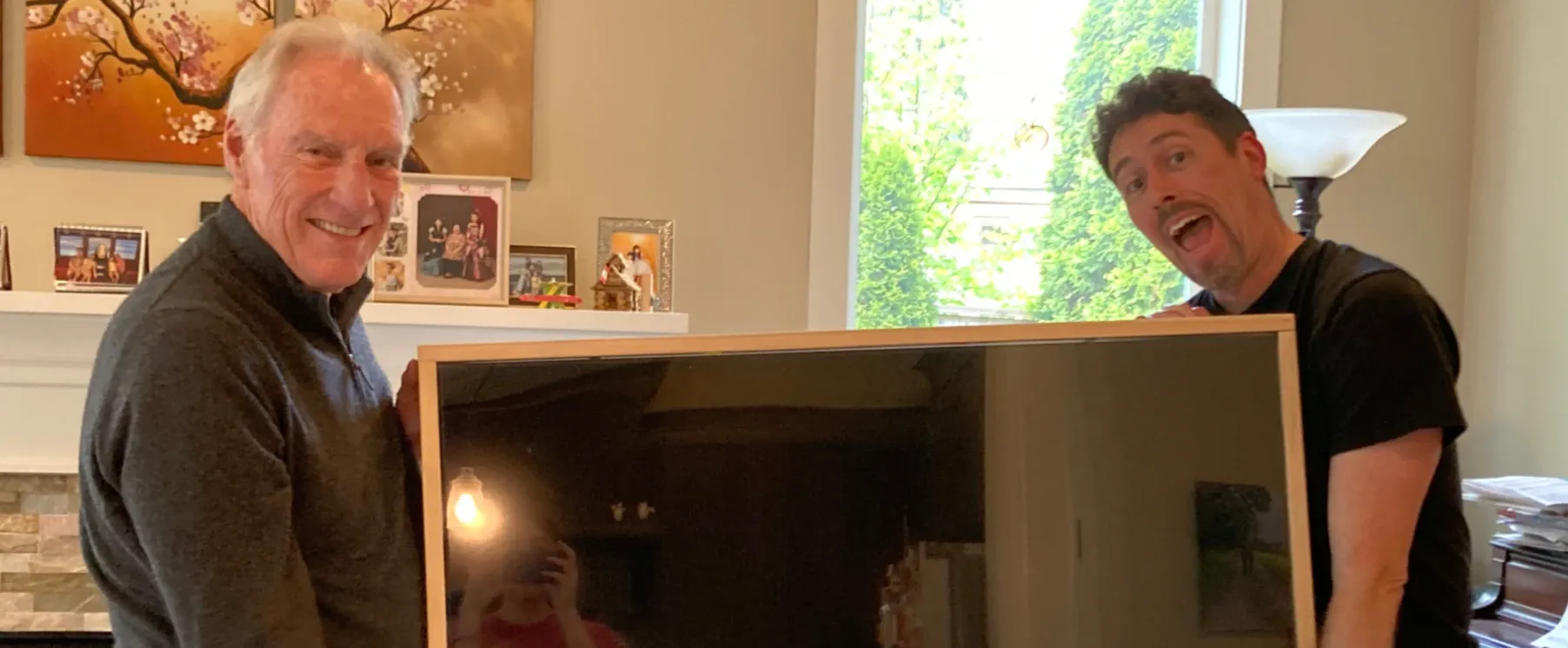
A few years ago I wanted to build one of those awesome TV screens maps for TRPGs. It was a really fun weekend project for when my dad came into town.
But then I actually had to use it!
So I got together a spreadsheet of every single foundry module that could possibly be used for in-person play, and tested them all, seeing what worked well for flat tabletops vs TVs on the wall, as well as what modules were the easiest to use in the moment, and which modules worked well together, and which ones fought each other.
The final doc was a mess of half-sentences, dead links and 50+ different modules.
So, I decided to clean this up and put everything in one place.
Version note: Written against Foundry VTT v14 (Stable). Module compatibility was checked in September 2026. Foundry moves fast, and modules die. Check the package page before you install anything.
The Short Version
- Install the Must Have modules below. Everything else is a (very) nice to have.
- One laptop. Two windows.
- The GM runs the native Foundry App on the laptop screen.
- A second browser, logged in as a player called
VTT, goes fullscreen on the TV. VTTowns every player character, so the TV shows the party’s vision.- The GM drives everything. Players never touch the computer.
- Hide the UI on the TV, lower the framerate, and turn off the fancy animations.
- Use pings, the ruler, and drawings to point at things.
That’s it. The rest is in the details (but the details are where the fun is!)
How It Works
One laptop. Two windows.
- GM screen: The Foundry desktop app (or a normal logged-in browser) on the laptop’s own screen.
- Table screen: A second, fullscreen browser window on the external display, logged in as a player user called
VTT(we’ll create that in a minute).
The laptop runs the Foundry server and both clients. That means you don’t need a second computer, port forwarding, or even an internet connection. The table browser just connects to http://localhost:30000.
Also, because the table screen is just a window on your second monitor, you can move your mouse onto it when something goes sideways like a stuck popup, a bad zoom, a dropped connection. It doesn’t happen often, but stopping the game for technical difficulties suuuuuucks.

Don’t bother with v14 popouts. Version 14 added native popout windows, and it’s tempting to think you can just pop the map out onto the TV. You can’t. Popouts work on application windows (sheets, journals, trackers), but the game canvas itself can’t be popped out. I tried writing a plugin that would do that, but no dice. You still need a second login.
Part 1: Setting Up Foundry
1. Create the Display User
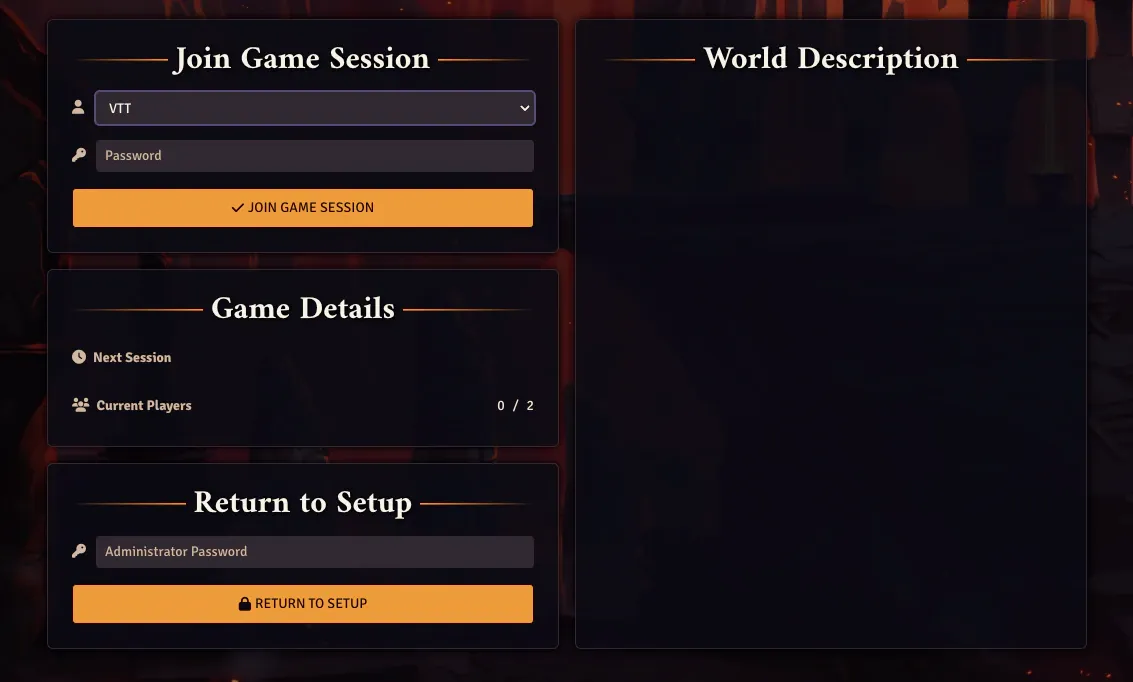
Go to User Management and create a new user:
- Name:
VTT(orTable, orTV, whatever) - Role: Player
- Password: leave it empty if this is all local. If you’re running off a hosted service, then give it a password because it is a live user.
**Important: **This user is the TV. Nobody at the table logs in as themselves.
2. Give VTT Ownership of Every Player Character
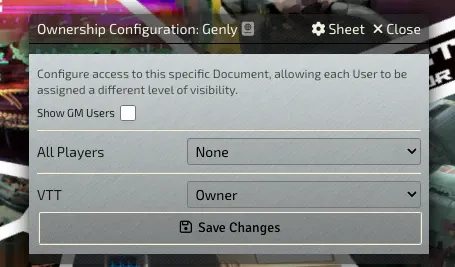
Open each PC’s ownership settings and set VTT to Owner.
- Go to the Actor tab in the sidebar
- Right click on the PC Actor you want to edit and choose Configure Ownership
- Set VTT to be the Owner and click Save Changes
You need to do this for Every. Single. One. If you miss one, that character’s vision won’t show up on the table. Do this for player characters, not monsters. If VTT owns an NPC, the table sees what that NPC sees.
Tip: Make sure you do this on the actor, not just the token on the scene, so every new copy of that token inherits it.
3. Install the Modules
I’ve separated this into “must have” and “nice to have.”
Must Have
These are the ones that make in-person play work.
| Module | Why |
|---|---|
| Gaming Table Player | Hold-to-pan the table view, hide the UI, grid scaling, table view outline. |
| Always HP | A floating window to adjust HP on selected tokens. Makes it easy to update the HP for players and NPCs since you’ll be managing them all yourself. |
| Health Estimate | Lets the players see the status of the enemies without having to keep asking you everyone’s status. |
| Monk’s Bloodsplats | Dead creatures turn into a blood splat. Instantly readable from across the room. |
| Carousel Combat Tracker | A big, visible initiative bar across the top. This is probably the best combat tracker I’ve used. |
| Close Player Art | GM hotkey to close shared images on every screen. This is a must-have if you’re planning on sharing images or handouts, because the TV doesn’t have an easy way to close art once you’ve shown it to them. |
| Forien’s Copy Environment | Export and import your settings. This is key, because you’re going to want to set this up once, and then copy/paste it into every campaign you run it with. |
Nice to Have
| Module | What it does |
|---|---|
| Dice So Nice | 3D dice on the table screen. This works better for wall-mounted, but everyone loves dice. |
| Dice Tray | Quick dice roller for the GM. |
| Monk’s TokenBar | Party portrait bar, group rolls, movement locks. Makes it easier to manage all the PCs at once. |
| Party Overview | A quick stat summary for everyone on the scene. Just more information, but a nice to have. |
| Quick Draw | Temporary drawings that fade out on their own. You can use the standard drawing tools, but this is nice for quick gesturing (see the drawing section below) |
4. Hide the UI on the Table Screen
We don’t want ANYTHING on the screen other than what we’re showing the players. That means JUST the map. No sidebar, hotbar, player list, etc.
Gaming Table Player has a “Hide UI Elements” option. Turn it on, and the VTT user sees just the map. You can still force-share handouts and the dice, so no need to worry about that.

5. Pick a Fog Mode
Before v14, fog exploration was tracked per user. That was mostly fine with a single VTT user, but it got weird fast if anyone ever logged in as themselves.
Version 14 added a Shared fog exploration mode in Scene Configuration. If anyone in the group has seen an area, it’s revealed for everyone. That includes players who missed the session.
For in-person games, turn this on.
6. Check a Few World Settings
- Token Drag Vision: Turn it on. Vision updates as tokens move. In online games, players can abuse this to peek around corners. At a real table, you’re sitting right there, so it’s all upside.
- Pan to Token Speaker: If you use chat bubbles, turn this off. You don’t want the table camera jumping around every time someone says something.
Part 2: Getting It on the TV
So, what do you need to get this thing running?
Wall or Table?
I’ve done both.
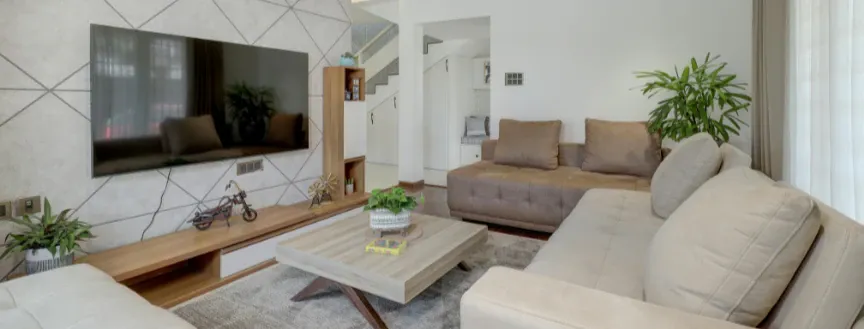
Wall-mounted is my go-to. I really wanted to do the flat-on-table version, but visibility isn’t great, and it’s very focused around miniatures-only, so if you want to show the players any documents or images, it doesn’t work that great.
Having the TV wall mounted lets people see the map when you’re doing combat, and see images, handouts and combat trackers without having to crane their heads or try to read upside down.
And if you want people to be able to gesture to the screen, give everyone laser pointers. Everyone loves laser pointers, and they’re not distracting at all!
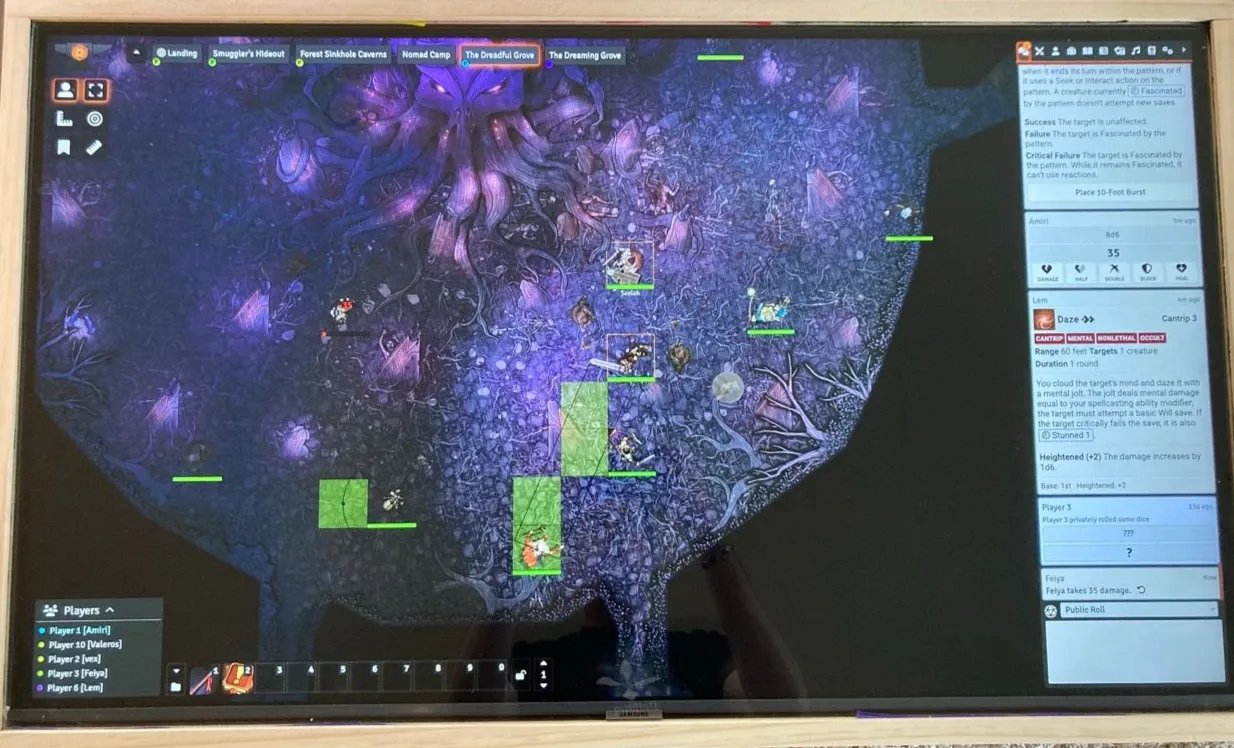
Flat on the table is for when the group is really into minis. It’s great. It’s also a TV lying flat under a pile of snacks, dice, and a dozen people’s forearms. Protect the screen. Put a sheet of acrylic or polycarbonate over it if you’re using minis (I’ll put together an article on how I built the table at another point). Don’t roll dice on it. (You will roll dice on it.)
A couple of things that bite people with table setups:
- Glare. Overhead lights will instantly wash out a flat screen. Daylight is even worse. Get curtains or adjust the TV so it’s not right under a light.
- Viewing angle. Cheap panels shift color when you look at them from a low angle. If you can, look at the TV in person before you buy it.
Connecting the TV
HDMI is the best option. It’s the most reliable, and the audio goes through the TV too. Ambient music and sound effects come out of the big speakers instead of your laptop. And since it’s just a straight connection to your laptop, you can play the audio from spotify, youtube or whatever without having to go through Foundry-only modules.
AirPlay works. It’s also finicky. Expect occasional dropout, lag, or “dear lord why is it mirroring instead of extending?”
Casting a Chrome tab (to a Chromecast or Google TV) works too. But your laptop is still doing all the rendering, and then it’s also encoding video to send for the casting. Super laggy unless you have a beefy laptop.
The hardcore option: get a mini PC or Raspberry Pi running Chromium in kiosk mode. Stick it behind the TV and have it open the game in its own browser over your home network. The laptop only runs the GM side, and the TV is always ready to go, which is nice.
This works great until you need to click something on the table screen. So then you need to get a KVM or another wireless keyboard or something. I tried it, and while it has the cool factor, it is more pain than I’m willing to go through.
Streaming Sticks & Smart TVs: Leave these out. They are underpowered and are usually running janky web browsers that can’t render the Foundry canvas smoothly.
Open the Table Screen
On the external display:
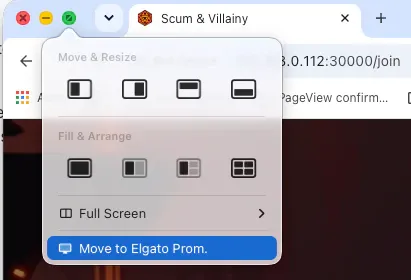
- Open a browser (or a separate browser if you’re running the main GM window in a browser and not the app).
- Go to
http://localhost:30000and log in asVTT. (If you’re hosted, use your game’s URL.) - Stick that on a second virtual desktop so it’s separate from your main GM screen and you can quickly jump between the two if you need to.
- Go fullscreen (F11 on Windows, Ctrl+Cmd+F on Mac).
The common recommendation is to use an incognito window, and that works fine and keeps the GM and VTT logins from stepping on each other. But, Foundry keeps some settings in the browser itself (framerate and performance settings specifically that we’ll talk about in a second), which means that in incognito, that all gets thrown away when you close it and you need to set it up again for every session.
I started using a dedicated browser profile for the table screen instead. You can also just use a completely different browser (like Firefox + Chrome) and it does the same thing.
Table Screen Performance Tuning
Hey, look at that! just like I promised.
A table display is not a gaming monitor. Nobody needs 60fps to watch a goblin walk across a room, and it’s just going to make it slow as crap.
On the table screen (logged in as VTT):
| Setting | Value | Why |
|---|---|---|
| Maximum Framerate | 30 | Half the GPU work, and nobody can tell the difference on a map. |
| Performance Mode | Medium or High | Start high, and drop it if the laptop fans start screaming. |
| Vision animation | Off | This only animates line of sight while moving. It looks cool, but since you’re moving everything anyways, it doesn’t give any real benefit and costs a lot of extra CPU. |
| FPS meter | On while tuning, On or Off while playing | This is a must have while you’re tuning. I generally leave it on while playing as well because it’s not distracting on a 50” TV, but some people might prefer to turn it off. |
On the GM screen, go as high as you want. It’s your screen. But remember that both clients and the server are fighting over the same laptop. If the table screen stutters, start by dropping the GM’s framerate or closing some other programs.
If You’re Using Minis
If you have minis, then you want your grid to match your bases (usually 1”) in the real world, not just in Foundry.
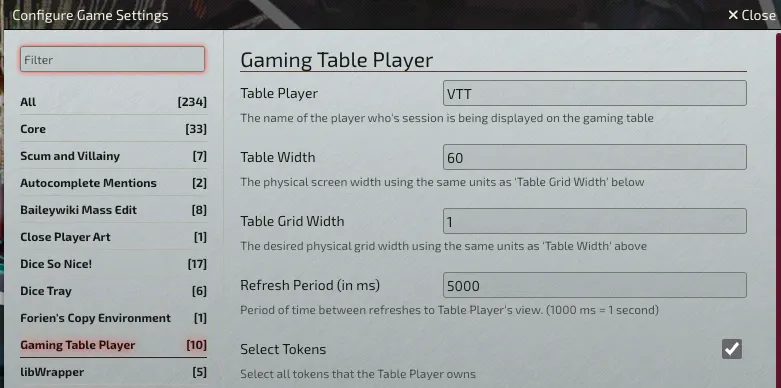
Gaming Table Player handles this with its table width setting. Put in the real physical width of your screen, and the zoom comes out so each grid square matches your bases. Then don’t touch the zoom on the table screen.
Hint: Keep maps small. If the party splits across a giant map, you’re going to be panning constantly, and every pan moves the grid out from under the minis.
Part 3: Running the Game
Ok, so everything is set up. We have Foundry configured, a TV (hopefully, or what are we even doing this for), some cables, dice, snacks and players.
So…. how do we actually use this Frankenstein at the table?
Vision at the Table
Party Vision by Default
When VTT owns all the PCs and nothing is selected, the table shows everything the whole party can see, all at once.
That’s what you want 90% of the time.
Click a Character to See Their Line of Sight
This is one of my favorite tricks.
As GM, you normally see the whole map. But, you can click a character’s token on the GM screen, and your view switches to only what that character can see. Now you know exactly what to describe. “Okay, Sera, you peek around the corner, and you see…”
Click an empty spot on the map, and you’re back to seeing everything.
Moving the Camera
This was way harder to figure out than I expected.
The obvious approach is “focus the table on a player’s token.” And, that works, but it’s super rigid. What you actually want at the table is to say, “Okay, look over here,” and show a specific part of the map.
So, how do we do that?
The Trick: Hold the Key and Pan
With Gaming Table Player, the GM presses a hotkey while hovering over the map, and the table snaps to that spot at a set zoom.
Super easy — BUT, the cool thing is that you can hold the hotkey down. While it’s held, you can move your mouse around the GM map, and the table follows you. So you’re essentially able to pan the field of view around in real time.
The default hotkey is something crazy like the backtick key (
`). I changed it to something that’s easy to hit without looking (Q), since I use it constantly.
Other settings I use:
- Draw Table View: On. The GM map shows a rectangle for what the TV is displaying. Absolutely essential.
- Focus on Selected Token: On. If a token is selected when you press the key, the table centers on that token. This works even for hidden tokens, which is great for “something moves in the shadows over here.”
- Table width: Set this to the actual physical width of your screen, so the zoom and grid size come out right.
I’ve tried the other camera-control modules. This is still the best version of this workflow I’ve found.
Built-In Backup: Pull Ping
Core Foundry has a GM-only ping that yanks everyone’s camera to a spot. Hold Shift and long-press on the map.
Snapping to a Player
- Select the token and press the Gaming Table Player hotkey.
- Monk’s TokenBar gives you a row of party portraits. Click one, and your GM view centers on that character.
Pointing, Drawing, and Signaling
This is the number one thing people want from an in-person VTT. “How do I point at stuff?”
Good news: most of it is built in.
Your Cursor
Foundry can show other users’ cursors on the map (it’s a permission in the core settings). When it’s on, your GM cursor shows up on the TV. It works, but to be honest it’s hard to see, and kind of sucks.
So, what’s better?
Pings
Long-press left click on the map (with the token tool selected):
| Input | What happens |
|---|---|
| Long-press | A pulsing circle in your user color. |
| Alt + long-press | A red warning triangle. “Look HERE.” |
| Shift + long-press | GM only. Drops a marker and pulls everyone’s camera to it. |
If a ping is off-screen, the table shows an arrow at the edge pointing toward it.
The Ruler
Drag the ruler, and everyone sees the path and the distance.
Drawing on the Map
The drawing tools (the pencil icon) include freehand, shapes, and text. Draw a circle around the thing. Draw an arrow. Write “NOPE” over the collapsed bridge.
The downside of core drawings is that they’re permanent. You have to delete them. There’s a “clear all” button in the drawing tools, and you’ll use it a lot.
If you want lines that fade on their own, Quick Draw does exactly that. It’s really handy, and I highly recommend it.
Showing Handouts
NPCs, maps, letters, wanted posters, the creepy portrait of sir fluffs-a-lot in the hallway. These are absolutely a must-have since you have a giant effing TV right there.
To show one: open the journal entry or image, then use Show Players from the window’s header menu. It pops up on every connected screen, including VTT. If you’re asked who to show it to, just pick VTT.
If you’re showing an image, right click on the image and choose “Show Players.” Don’t show the entire journal page because a) it will be tiny, and b) it might have stuff on the page that you don’t want the PCs to see. Ooops!
When you’re done showing it to the players, use your hotkey from Close Player Art. It adds a GM hotkey that closes shared images and journals on every screen at once. Show the handout, let everyone look, hit the key, back to the map.
Dice
Honestly? We mostly roll real dice.
I still keep Dice So Nice installed. Some players love seeing big 3D dice roll across the TV, and it’s a nice moment for a big roll. Especially when I want a giant flame attack or something with extra OOMPH to it. I set the dice to disappear quickly (about 2 seconds) so they don’t hang around on the map.
Dice Tray gives the GM a quick roller. Pop it out and park it somewhere out of the way on your screen, so it’s not buried under the chat log.
That’s everything I’ve got. If you’ve found a better way to do any of this (especially the camera stuff), I want to hear about it.
See you on the flip side.
Pre-Game Checklist
Here’s a quick checklist for making sure you’re ready to roll those damn dice.
- Laptop plugged in. (Foundry plus two clients will eat a battery.)
- TV connected, set to extend (not mirror).
- Table browser logged in as
VTT, fullscreen, UI hidden. - Display settings re-applied (if you’re using incognito).
- Every PC owned by
VTT. - Nothing selected on the table screen, so party vision is showing.
- Ping, pan, and close-image hotkeys tested once.
- Settings backed up.
Taggedfoundryvttin-personmodulessetup