As I’m building out the data import and exports for DungeonDraft maps, I had to take a deep dive into exactly how DungeonDraft saves its data.
And it’s FASCINATING.
One of my favorite little discoveries is how materials and other “painted” surfaces work.
At first glance, you’d probably think that a painted material is stored like anything else in the app; as a shape. So you draw a blob of grass, and the app saves the pixel shape of that blob.
NOPE
Materials (and caves, which work the same way) aren’t actually saved as shapes at all
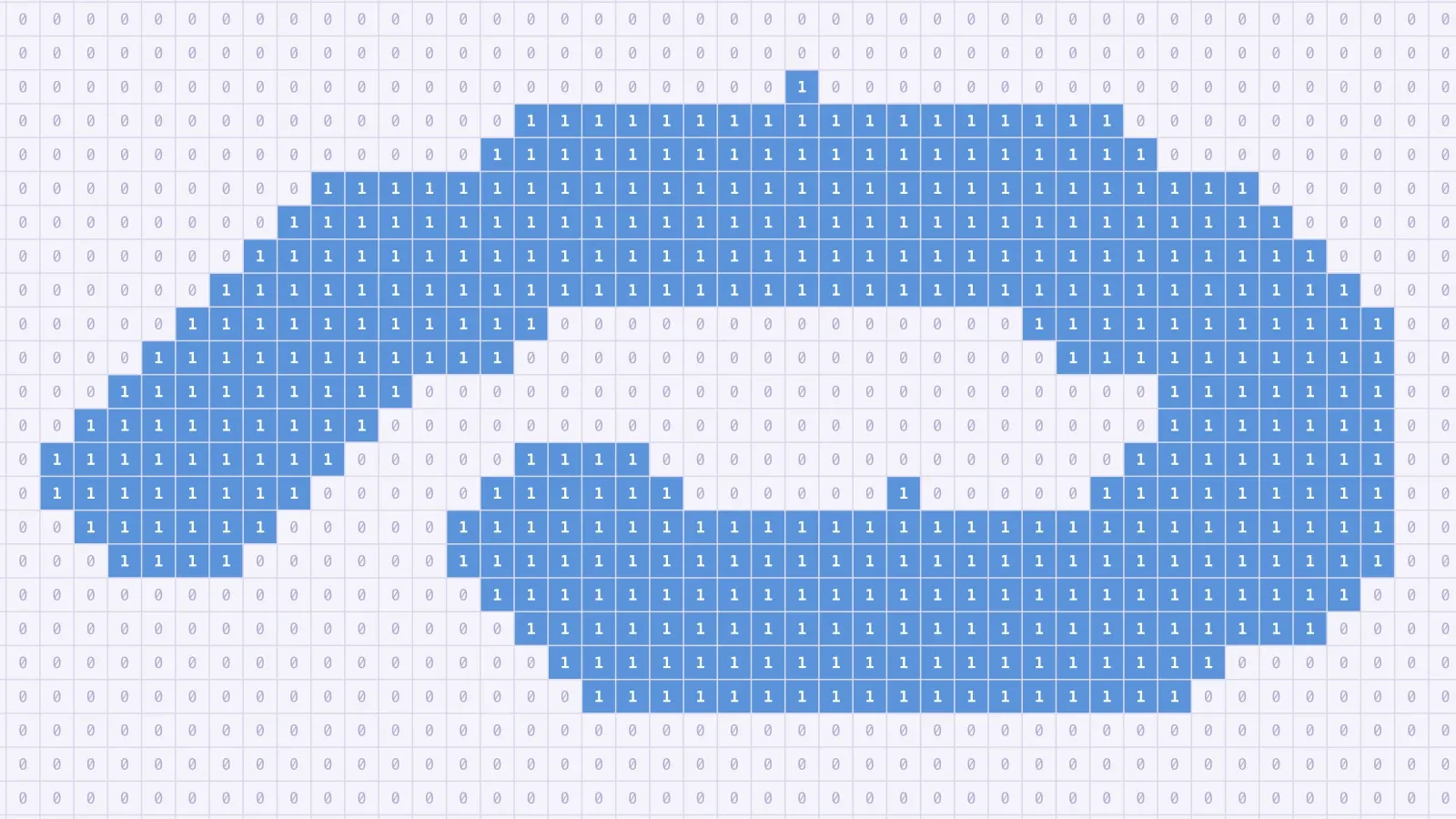
They’re actually saved as a grid of on/off bits.
According to the modding docs, the internal drawing class takes that 2D array of bits into a shape with a Marching Squares algorithm (Yup, the same Marching Squares I use for tracing sprite outlines in the lighting system.)
So, when we’re painting materials in DungeonDraft, we’re not actually defining the pixel shape, but rather a low-res raster of the shape. Whenever the brush “paints,” it’s stamping a circle onto the bitmap at the cursor position, flipping the bits on (or off if we’re erasing).
Then the whole thing gets re-meshed (the docs actually flag that re-meshing step as heavy on the CPU).
If you ever opened up one of your .dungeondraft_map files (it’s just JSON), you can see it in the code. Cave data is saved as a PoolByteArray bitmap, which is just a looooooong list of 0s and 1s.
PoolByteArray( 0, 0, 0, 0, 0, .... 0, 0, 0, 0, 0 )
So looking at that, and our world settings which sets the cell_size at 64, and a max offset distance of 0.2… We can see that with a 256px grid, that works out to 4 x 4 cells per grid square.
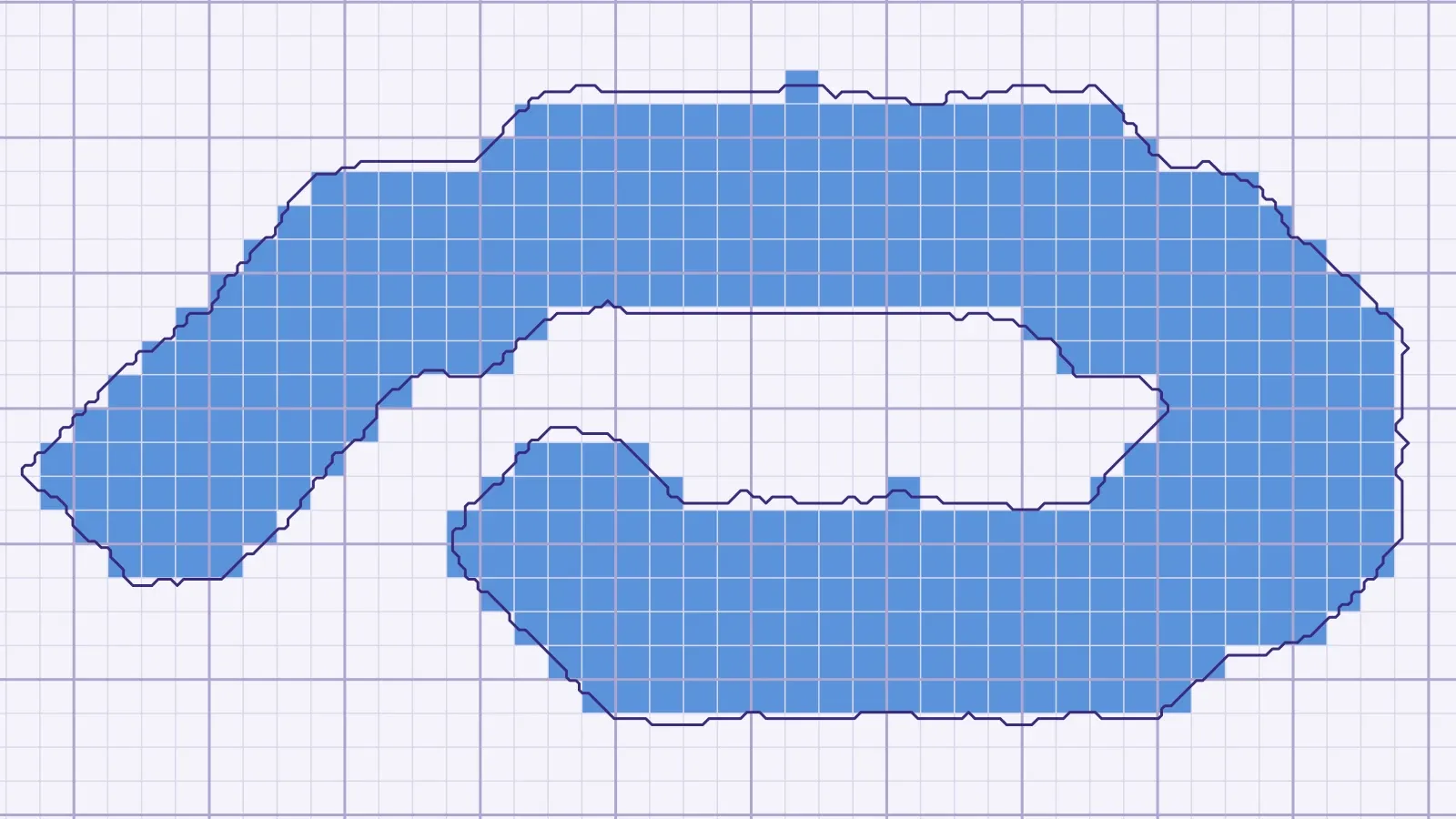
That’s super coarse. It doesn’t look anything like what you were drawing with your cool, freehand brushstrokes, because everything’s getting snapped to a grid of 64px squares the moment you let go of your mouse.
So why doesn’t it look like blocky crap? Two cool tricks.
First, the Marching Squares algorithm doesn’t draw squares. Like we shared in our lighting article, Marching Squares looks at each group of four cells and picks an edge shape from available shapes, so you get diagonals instead of stair steps.
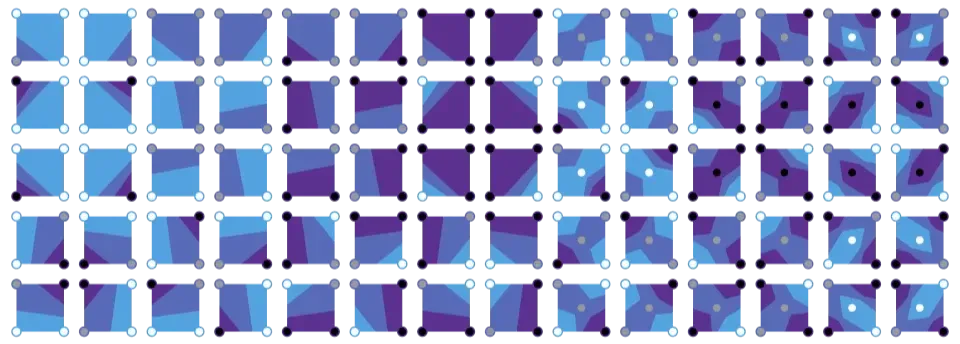
Second is jitter. Internally there’s a setting that randomizes the position of each mesh point, so the edge wobbles slightly and adds in organic variations instead of the straight lines for each square.
Then the border texture gets wrapped around the entire perimeter, which is drawn in a way that adds an extra organic touch to whatever harsh corners might remain.
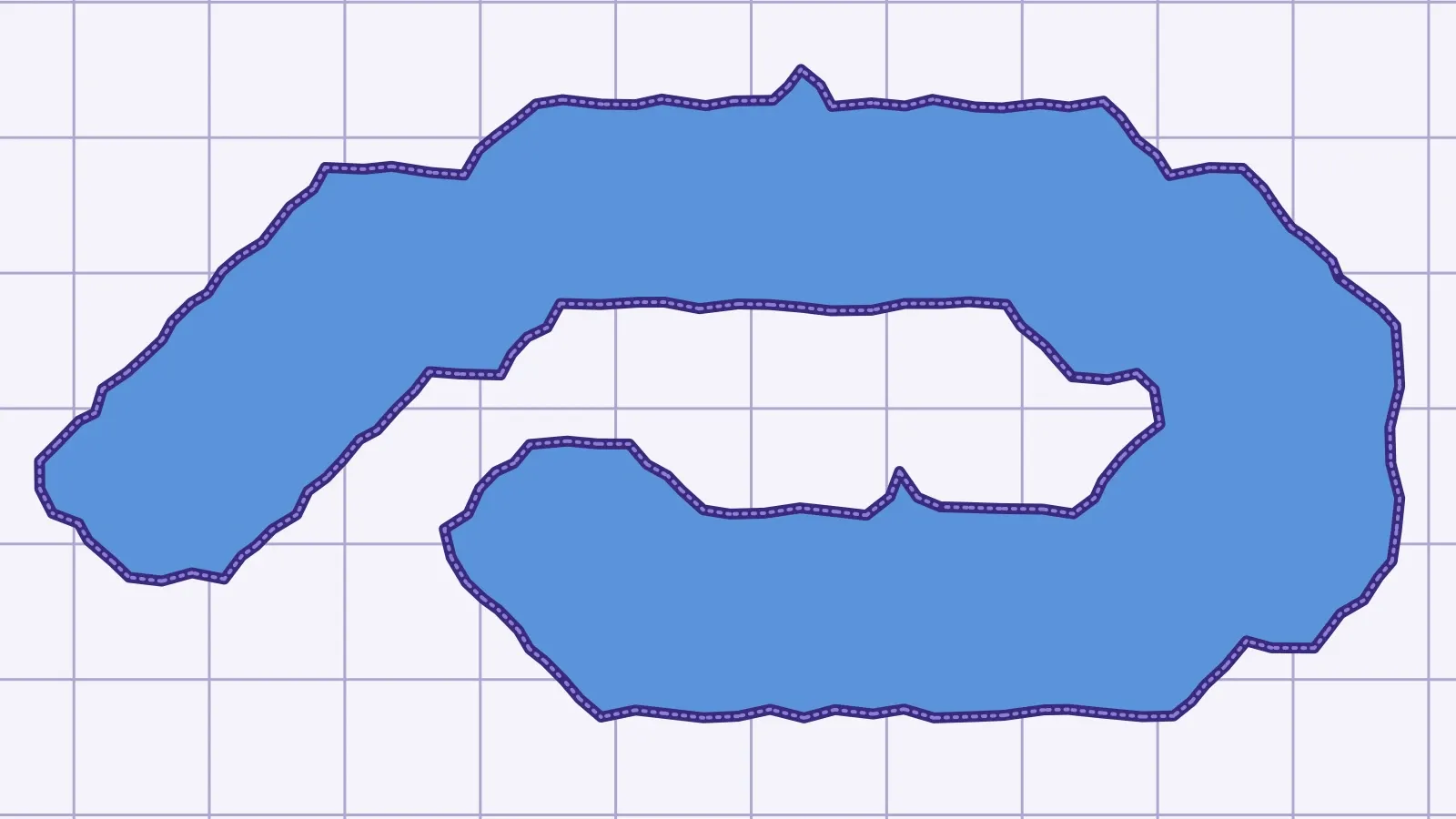
And that’s a pretty smart tradeoff. A bitmap is super tiny to save (I mean, it’s saved, uncompressed, in CODE), it’s dead simple to erase (just flip the bits back and forth), and undo is just keeping a copy of the previous bitmap from before the edit.
You don’t have to do any crazy boolean math on complex polygons, and there’s no intersecting paths or weird cleanup that you have to deal with.
But it is a very lossy format. The image you’re getting is just a low-res approximation of what you drew, scaled back up with randomization to make it seem organic. Which is why you can’t grab the edge of a material and drag it, or scale it, or do any of that kind of stuff, because there is no edge to drag. It’s just bits.
Which is probably why I’m so fascinated by it, because as a developer it is a very cool, very useful hack to create a compact storage format from visuals. But as a designer, it drives me batty, because that low fidelity is exactly what keeps me from being able to tweak my maps — AND it means another rendering system that I have to keep in mind when I’m trying to remember how different materials act when used in different ways.
It’s one of the major reasons that surfaces are saved as paths in Artifax, just like everything else…
The less custom formats we can have running around in the system, the easier it is for people to understand how they work, and the more cool stuff we can do with each of them.
Taggeddungeondraftmaterialsmarching squaresfile formats